Canva AI: The Complete Design Platform Powered by Artificial Intelligence
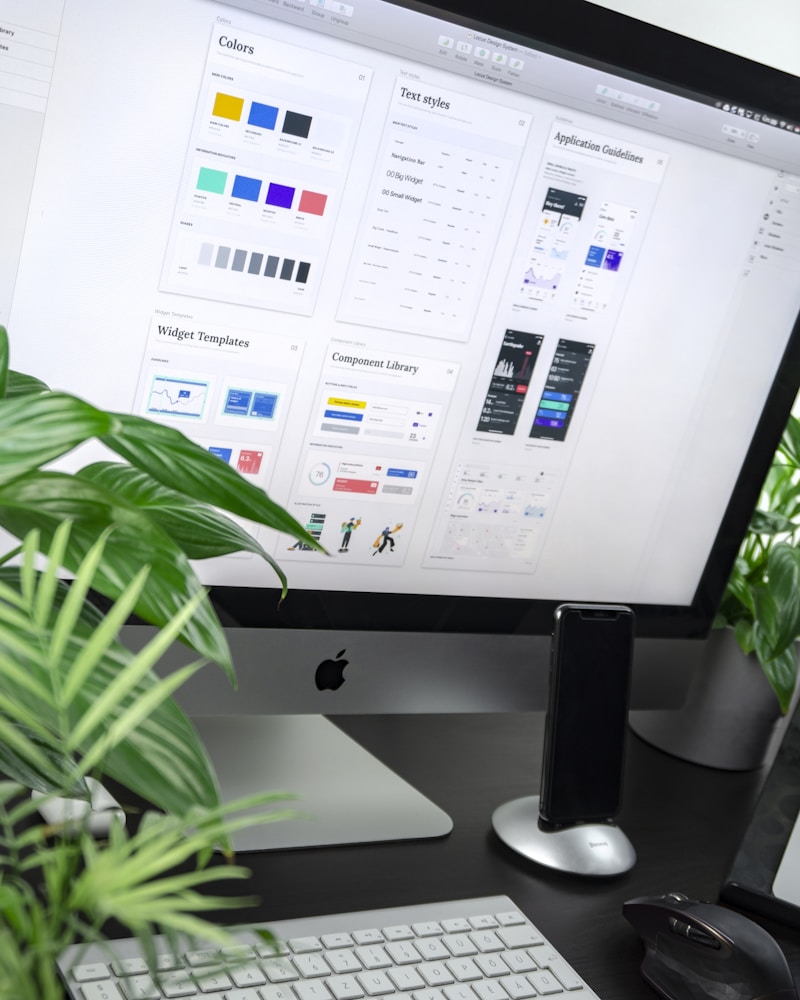
Design used to require years of training and expensive software. Then Canva democratized it for non-designers. Now Canva AI is doing something even more radical: making professional-quality design achievable in seconds through natural language. Whether you need a social media graphic, a presentation, a logo, or a video thumbnail, Canva’s AI toolkit can take you from blank canvas to polished result faster than any traditional workflow.
What is Canva AI?
Canva AI isn’t a single tool — it’s a suite of AI features embedded throughout the Canva design platform, collectively branded as Magic Studio. These tools include:
- Magic Write: AI text generation for copy and content
- Magic Design: Auto-generate complete designs from a text prompt
- Dream Lab: Advanced text-to-image generation for unique visuals
- Magic Edit: AI-powered image editing (remove, replace, expand)
- Magic Grab: Make elements in photos independently moveable
- Text to Video: Generate short video clips from text descriptions
- AI Background Remover: One-click background removal
- Magic Morph: Transform design elements with AI style changes
- Translate: Instant translation of designs into 100+ languages
Getting Started with Canva
Free vs. Canva Pro
| Feature | Free | Pro ($12.99/mo) | Teams ($14.99/user/mo) |
|---|---|---|---|
| Magic Write | 50 uses/lifetime | Unlimited | Unlimited |
| Dream Lab (AI Images) | 50 credits | 500 credits/month | 500+ credits |
| Magic Design | ✅ | ✅ | ✅ |
| Background Remover | ❌ | ✅ | ✅ |
| Magic Edit | Limited | Unlimited | Unlimited |
| Brand Kit | ❌ | ✅ | ✅ |
| Resize designs | ❌ | ✅ Magic Resize | ✅ |
For professional use, Pro is essential — the AI features are significantly limited on the free plan.
Creating Your First AI Design
- Sign up at canva.com
- Click Create a design or choose a template category
- Look for the Magic Studio button or the sparkle ✨ icon
- Type your prompt and watch Canva generate a starting point
Magic Design: Start from Nothing
Magic Design is the entry point for AI-assisted creation:
- Click Magic Design from the home page or editor
- Describe what you need: “Instagram post for a coffee shop announcing a new seasonal latte, warm autumnal colors, modern minimalist style”
- Canva generates 6–8 complete design variations
- Pick the closest match and customize from there
The generated designs are full Canva designs — every element is editable. You’re not working with a static image but a live canvas you can modify.
Magic Design for Presentations
This is where it gets impressive for business users:
- Click Presentations → Magic Design
- Type your presentation topic: “2026 Q1 Sales Review - SaaS company, professional but approachable”
- Upload any relevant documents or data (optional)
- Canva generates a complete multi-slide presentation: cover, agenda, content slides, summary
The AI creates a logical structure, populates placeholder content, and applies consistent visual design. You edit the specifics but skip the blank-slide anxiety.
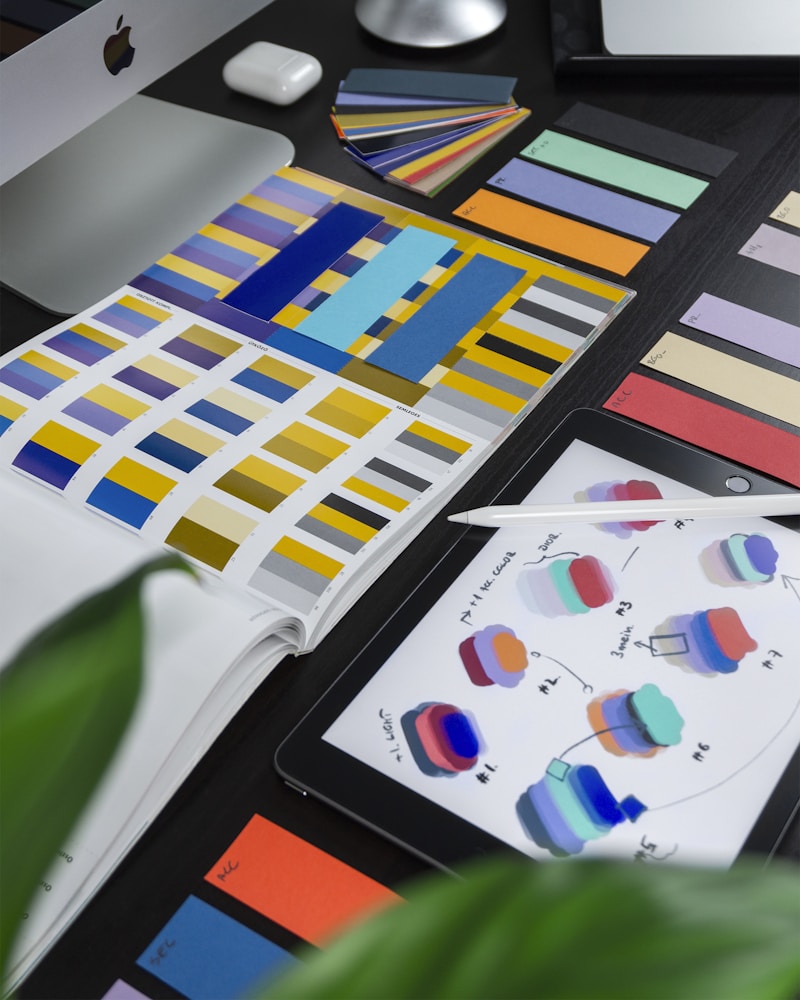
Dream Lab: AI Image Generation
Dream Lab is Canva’s most advanced AI image generator, powered by a specialized model trained on licensed content:
Generating Images
- In the Canva editor, click Apps → Dream Lab
- Enter your prompt: “Minimalist flat illustration of a mountain landscape at sunset, pastel colors, vector art style”
- Choose style modifiers: photography, illustration, 3D, watercolor, etc.
- Select aspect ratio and click Generate
- Get 4 variations in seconds
Image Styles Available
- Photo: Realistic photographic look
- Illustration: Flat or detailed illustration styles
- 3D Render: Three-dimensional rendered objects
- Watercolor: Soft, painterly aesthetic
- Neon: Vibrant, glowing style
- Retro: Vintage-inspired looks
- Abstract: Non-representational artistic outputs
Best Practices for Dream Lab Prompts
Basic: “Woman working at laptop”
Better: “Young professional woman working at a laptop in a bright modern office, natural window light, shallow depth of field, editorial photography style”
Best: “Diverse professional woman, early 30s, working at a MacBook in a minimalist co-working space, warm golden afternoon light from floor-to-ceiling windows, soft bokeh background, candid natural pose, commercial photography style, high resolution”
The more specific your description — subject, setting, lighting, style, mood — the better the output.
Magic Edit: Transform Existing Images
Background Removal
The most-used AI feature in Canva:
- Upload or select an image
- Click Edit photo → BG Remover
- Subject is isolated in ~2 seconds
Canva’s background remover handles complex edges (hair, fur, transparency) better than most competitors. Essential for product photos, headshots, and social media graphics.
Magic Erase
Remove unwanted objects from photos:
- Select an image, click Edit photo → Magic Erase
- Paint over the element you want to remove (power line, person in background, etc.)
- AI fills in the background intelligently
Magic Replace
Swap out elements in an image:
- Paint over the element to replace
- Type what you want instead: “Replace the coffee cup with a green tea cup”
- AI generates a contextually appropriate replacement
Magic Expand
Extend an image beyond its original borders:
- Resize your canvas to be larger than your image
- Select the image, click Expand image
- AI generates seamless content to fill the new space
Great for adapting portrait images to landscape formats or adding breathing room to tight compositions.
Magic Write: AI Copywriting
Magic Write is Canva’s built-in AI writing tool:
Using Magic Write
- Add a text element to your design
- Click the Magic Write button (or right-click → Magic Write)
- Describe what copy you need:
- “Write a punchy 3-line tagline for a sustainable clothing brand”
- “Create a compelling event description for a tech conference on AI (50 words)”
- “Write 5 Instagram caption options for this product launch image”
Tone Control
Magic Write supports tone modifiers:
- Professional
- Casual
- Witty
- Inspirational
- Minimalist
Type less, design more: Magic Write excels at headlines, captions, and short-form copy — not 2,000-word articles.
Canva AI for Specific Use Cases
Social Media Content Creation
The killer workflow:
- Open Magic Design → choose Social post
- Describe your campaign: “New product launch for organic skincare serum”
- Get 6 variations instantly
- Use Magic Resize to adapt the winner to all platforms: Instagram square, Instagram Story, Twitter/X, LinkedIn, Facebook
Five formats from one prompt in under 5 minutes. Teams that post daily across platforms will find this transformative.
Video Thumbnail Design
- Choose YouTube thumbnail (1280×720)
- Use Dream Lab to generate a custom background or key visual
- Add text with Magic Write assistance
- Use Background Remover to cut out product or person photos
Presentations for Non-Designers
- Create a presentation with Magic Design
- Use Magic Write to flesh out talking points on each slide
- Generate custom charts with Canva’s data visualization tools
- Export as PDF or present directly from Canva
Brand Consistency at Scale
For teams, Brand Kit + AI is powerful:
- Set up your brand colors, fonts, and logos in Brand Kit
- All AI-generated designs automatically apply your brand settings
- Magic Resize adapts brand-compliant designs across every format
Canva vs. Dedicated AI Image Tools
| Tool | Strength | For |
|---|---|---|
| Canva AI | Full design workflow | Non-designers needing finished graphics |
| Midjourney | Artistic quality, style control | Artists, maximum visual creativity |
| FLUX.1 | Photorealistic, open source | Developers, technical users |
| Adobe Firefly | Adobe ecosystem integration | Existing Adobe users |
| DALL-E 3 | Prompt understanding | ChatGPT users, simple generation |
Canva wins when you need a complete, polished, ready-to-use design — not just an AI-generated image. The surrounding design tools, templates, and export options make it the best choice for business and marketing use cases.
Pricing for Canva AI
Free Tier
- 50 Magic Write uses (lifetime, not monthly)
- 50 Dream Lab credits (lifetime)
- Basic Magic Design
- No background remover
Canva Pro ($12.99/month or $119.99/year)
- Unlimited Magic Write
- 500 Dream Lab credits/month
- Unlimited Background Remover
- Magic Resize for all platforms
- Full Magic Edit suite
- Brand Kit for 1 brand
Canva Teams ($14.99/user/month)
- Everything in Pro
- Multiple brand kits
- Team folders and collaboration
- Admin controls and workflows
Tips for Power Users
-
Save AI templates: When Magic Design generates something great, save it as a custom template for future use
-
Combine tools: Use Dream Lab for a custom background → Magic Edit to add product → Magic Write for copy — three AI tools in one workflow
-
Prompt iteration: Magic Design and Dream Lab let you generate variations. If the first batch isn’t right, refine your prompt and regenerate
-
Use style references: In Dream Lab, describe existing designs you like: “Similar to the clean typography style of Apple marketing materials”
-
Batch creation with Magic Resize: Perfect one format, then Magic Resize it to every platform — huge time saver for social media managers
Limitations
- Dream Lab quality: Good but below Midjourney at its best for artistic/creative output
- Magic Write: Better for short copy than long-form content
- Template reliance: AI designs often look good but similar — customization separates your output from others using the same prompts
- Credit limits: Pro’s 500 Dream Lab credits go faster than expected with heavy use
Conclusion
Canva AI has made a compelling case that design tools should be AI-native, not AI-augmented. For marketers, small business owners, content creators, and teams who need quality visual output at scale — without a full design team — Canva’s Magic Studio is genuinely transformative.
If you’re still manually building every design from scratch in Canva (or worse, waiting for a designer for every asset), exploring Magic Design and Dream Lab should be your next step.
Start at canva.com — the free tier is a great place to explore
What’s your most-used Canva AI feature? Let us know in the comments!